Text, Logos, Shapes, And Signatures
Type a copyright notice, upload a logo, draw a signature, or choose from 20 shapes. Adjust size, rotation, fill, stroke, and opacity. Combine layers, drag marks into place, and undo changes as you work.
Invitation required
Add text, logos, signatures, shapes, stickers, or QR codes. Adjust them on your photo, preview PDF pages, or move a watermark along a video timeline. Save your style and reuse it across a batch.
Lumafoil is invitation-only. Want to self-host? Get the source code free on GitHub.
Sign InEditing runs on your device. You choose what to save or share.

Design a watermark, apply it across your files, and choose how to save or share the results.
Type a copyright notice, upload a logo, draw a signature, or choose from 20 shapes. Adjust size, rotation, fill, stroke, and opacity. Combine layers, drag marks into place, and undo changes as you work.
Apply saved watermarks to a mixed batch of photos, PDFs, and supported videos. Track each file, adjust individual photos, and download results separately or together as a ZIP. Failed files stay visible for review.
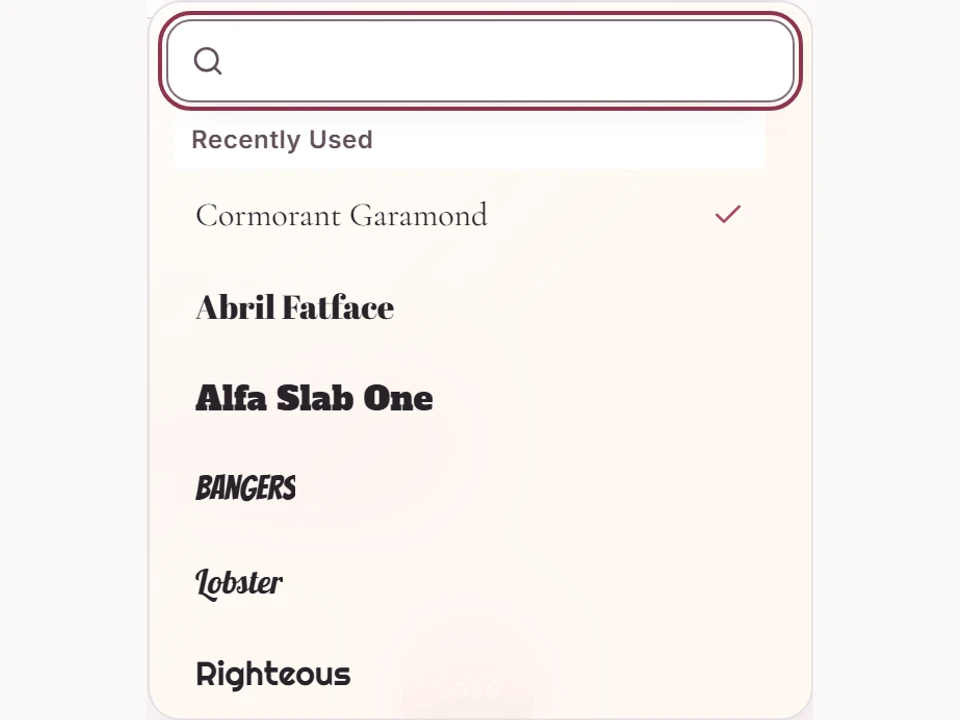
Search fonts by name and see each choice in its own typeface. Revisit recent fonts, adjust letter spacing and curve, and save the style in a watermark. Font files and their open-license notices are bundled with Lumafoil.
Search animals, flowers, food, travel, celebrations, and everyday objects. Resize the vector artwork for your watermark. Bundled artwork keeps its license notices with exported content.

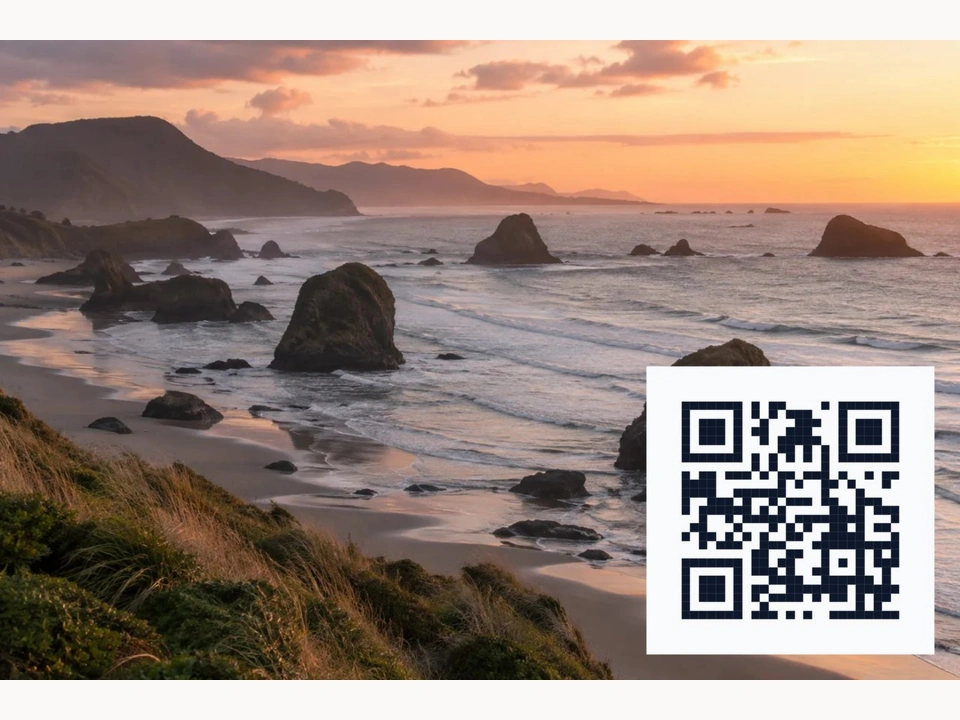
Turn a website address or text into a QR code. Keep separate saved codes for your portfolio, contact page, or different projects, then reuse them on your files.
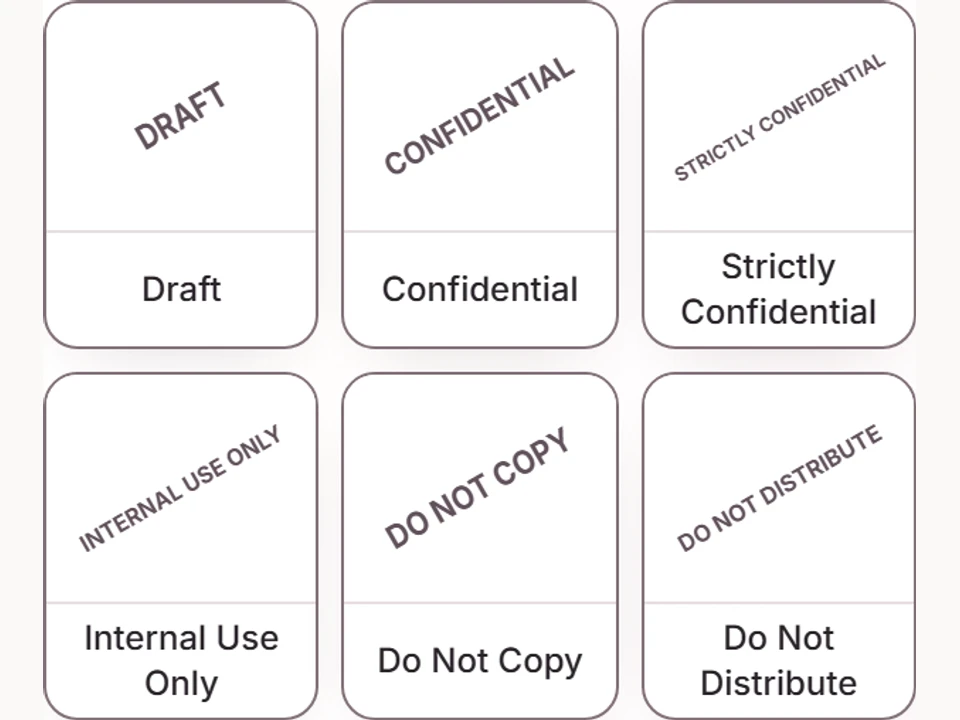
Start with included presets such as Draft, Confidential, Do Not Copy, Proof, review stamps, or photo credits. Customize a preset and keep your version in Saved Watermarks. Organize saved watermarks into folders and reuse them in Images, Documents, Videos, or Bulk.
Crop or rotate a photo and adjust brightness, contrast, and saturation. Zoom in for placement, show an adjustable grid, and turn on snapping. Source resolution is retained unless you choose a crop or smaller output.
Let Lumafoil suggest a position and a light or dark mark based on the image. Review the result and move or restyle it yourself.
Scrub the video beside inline watermark tools. Set positions at different timestamps, choose when each mark appears, and add fades. Exports are re-encoded; available formats and audio support depend on your browser and the source file.
Read a PDF and position watermarks with tools beside the page. Apply them throughout the document or process multiple PDFs in Bulk. Watermarks are added to the original PDF pages, preserving their existing text, images, and vector artwork.
Export photos as PNG, JPEG, or WebP. PNG is the lossless default; JPEG and WebP use your chosen quality. Exports render from the original image, not the smaller editing preview.
Organize watermarks in Saved Watermarks and finished photos in Watermarked Images with folders. Browse Recent Work in thumbnail, list, or details views. Share selected photos through a link, or grant access to a workspace.
Create expiring, revocable links for selected photos and manage them in Watermarked Images. Workspace owners can grant View or Edit access through a link, email invitation, or direct addition of an existing user. Workspace access is separate from an invitation to join Lumafoil.
Cloud storage is in preview. Connect Google Drive, Dropbox, or OneDrive to open permitted files, choose export folders, and create provider sharing links. Saved connections can be reused, but your provider may request authorization again. Google Drive shows files and folders selected or created with Lumafoil. Microsoft work or school accounts may need administrator approval.
Prepare the app for offline use while signed in. Edit photos and watermarks and queue Watermarked Images saves without a connection. Reconnect with the same account to sync. Cloud transfers, invitations, and sharing changes require a connection.
New users need a site invitation and receive a separate private workspace. A site invitation never shares your photos or watermarks. Sharing a workspace requires an explicit access grant from its owner.
Use Lumafoil in English, Spanish, French, German, Italian, Portuguese, Dutch, Japanese, Korean, Chinese, Russian, or Arabic, including right-to-left layouts.
Choose a light or dark workspace, or follow your device setting. The responsive interface adapts to phones, tablets, and larger screens.
Keep reusable watermarks in Saved Watermarks and saved photos in Watermarked Images. Organize both into folders within your workspace.
Choose a photo, PDF, or supported video from your device or connected storage. Use Bulk for multiple files. Your source files remain unchanged.
Start with a preset or saved watermark, then edit its text, artwork, size, position, and appearance beside the preview.
Download the result or choose a cloud folder. Save finished photos to Watermarked Images and create links for the photos you want to share.